How to Make the iPad Keyboard Bigger
 Harris Brown
- Updated
- 3 min read
On this page
If your iPad keyboard has become a small floating box, spread two fingers apart on it to restore the full-size keyboard. If it is split into two halves, hold the keyboard button and choose Dock and Merge. Those are the first fixes to try before changing accessibility settings.
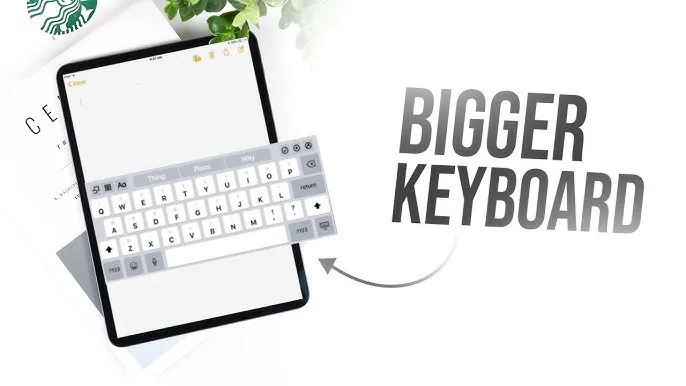
Restore a floating keyboard to full size
- Open Notes or another app with a text field.
- Tap the field to bring up the keyboard.
- Place two fingers on the small keyboard and spread them apart.
- Release when the keyboard fills the bottom of the screen.
On versions that show a More button on the floating keyboard, you can also tap it and select Full. Floating mode is designed to make the keyboard smaller and movable; it does not enlarge keys.
Merge a split keyboard
Touch and hold the keyboard button at the bottom right. Slide to Merge to join the halves, or Dock and Merge to join them and return the keyboard to the bottom of the screen.
Split mode is available only on certain iPad models. It helps with thumb reach when holding the device, rather than making the keys larger. If you do not see the option, your model may not support it. See Apple’s instructions for small and split keyboards.
Try landscape orientation
Turn the iPad sideways in an app that supports rotation. The keyboard uses the wider screen, which may make typing more comfortable. If nothing rotates, open Control Center and check Rotation Lock. An app can also restrict its own orientation.
The standard Apple keyboard has no slider for choosing an arbitrary key size. Text-size settings affect supported text and do not independently resize the keyboard’s touch targets.
Use accessibility Zoom when you need magnification
Open Settings > Accessibility > Zoom. Zoom magnifies the display; it does not change the underlying keyboard layout. Review Follow Focus and Smart Typing to choose how the zoomed area behaves when the keyboard opens. Start at a modest magnification so you can still reach the controls.
If tapping remains difficult, dictation or a physical keyboard may be easier than magnifying the screen. Our iPad keyboard connection guide covers Bluetooth, USB and compatible keyboard covers.
If a third-party keyboard is too small
Return to Apple’s keyboard using the globe key and compare. A third-party app may have its own sizing options, but availability differs by app and iPadOS version. Check the app’s settings and current documentation before installing it for that purpose. Full Access is a separate permission and is not required just to enlarge Apple’s keyboard.
Check the result
Type a short sentence in Notes. Confirm that the keyboard is docked, that every key is reachable, and that the display remains readable. If the issue is on a phone, see how to make the iPhone keyboard bigger. To check a connected physical keyboard, use the keyboard tester; tapping an onscreen keyboard does not test hardware.

Harris Brown
I'm Harris Brown, an experienced web developer and keyboard enthusiast who creates content about keyboard testing and optimization at keyboardtester.io
Related articles
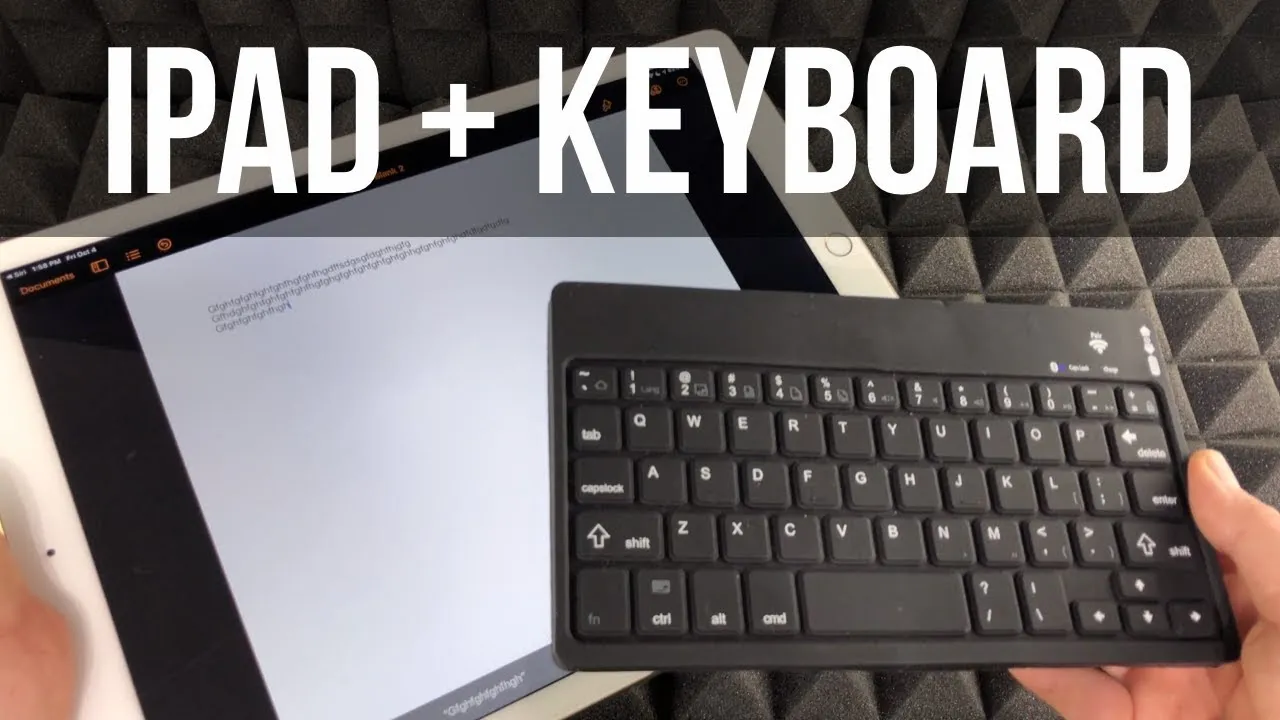
How to Connect a Keyboard to iPad
Connect a Bluetooth, Smart or USB keyboard to your iPad step by step, plus fixes for when your iPad won't pair with or detect the keyboard.
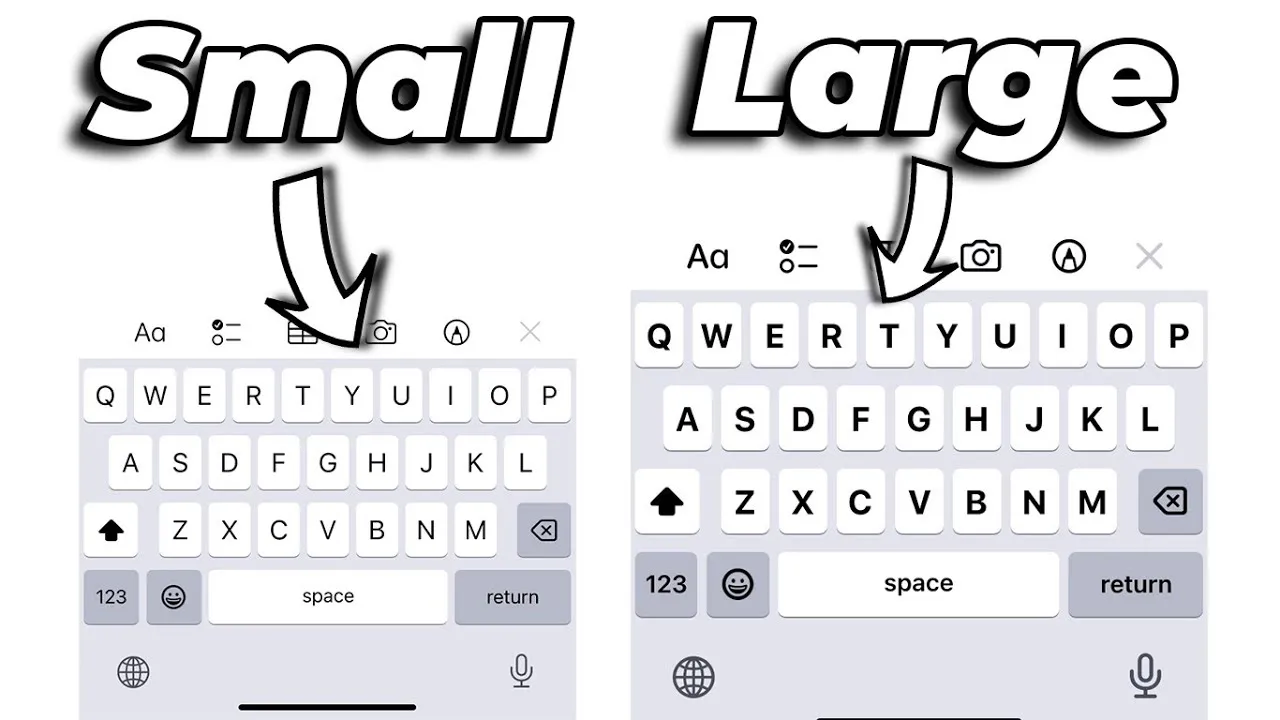
How to Make the Keyboard Bigger on iPhone
Make the iPhone keyboard easier to use with Display Zoom, landscape mode and full-width typing. Learn which settings change key size and which do not.
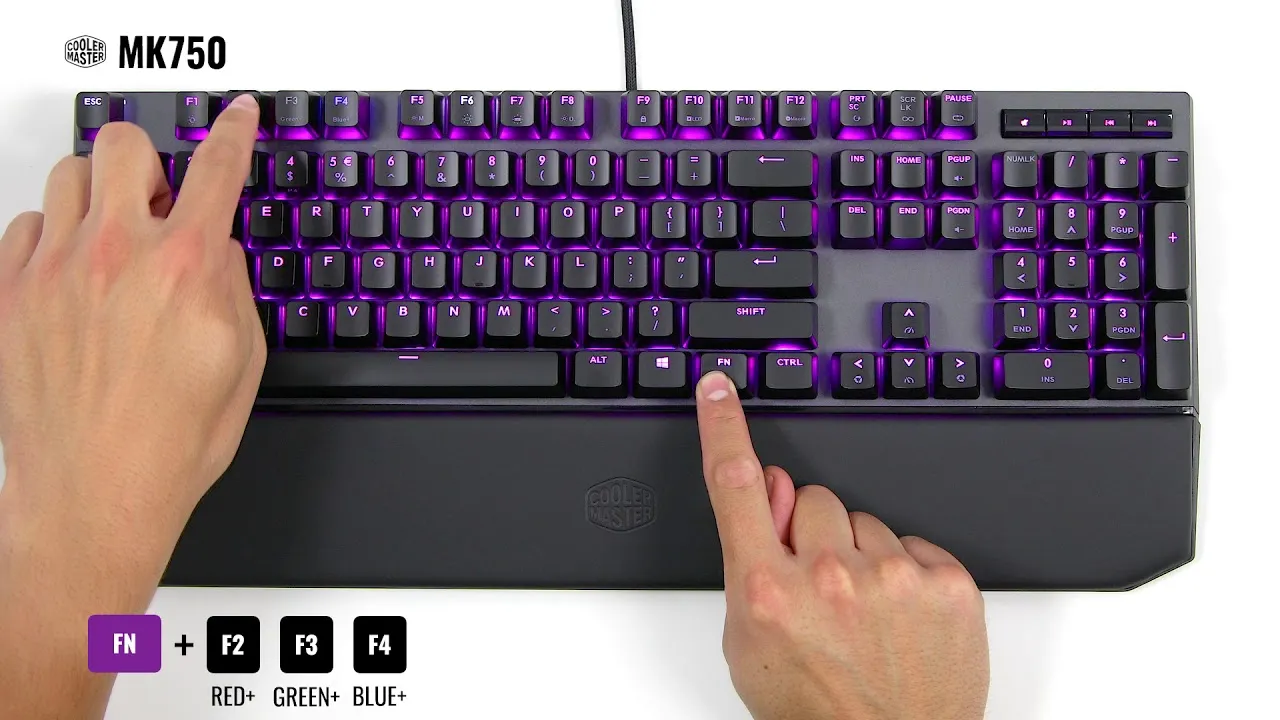
How to Change Your Keyboard’s Lighting Color
Want your keyboard to glow a different color? Learn how to check for RGB lighting and change keyboard colors with software, key shortcuts and settings.