How to Make the Keyboard Bigger on iPhone
 Harris Brown
- Updated
- 3 min read
On this page
The iPhone keyboard has no built-in key-size slider. You can use Display Zoom, try landscape orientation in a supported app, or restore the full-width keyboard if one-handed mode is active.
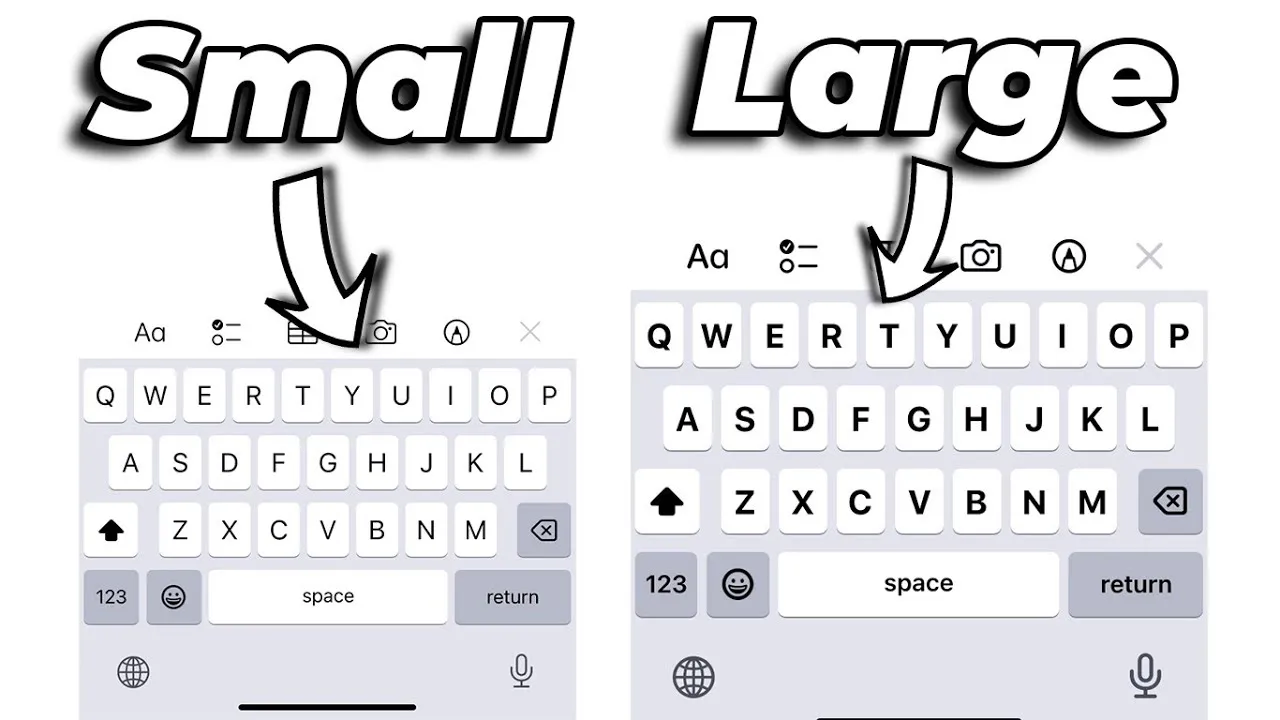
Return to the full-width keyboard
If the keyboard is pushed to one side, tap the arrow in the empty area to restore its normal width. You can also hold the globe or emoji key and select the center keyboard option. One-handed mode makes the keyboard narrower, so it is not a way to enlarge it.
Enable Display Zoom
- Open Settings > Display & Brightness.
- Select Display Zoom.
- Choose Larger Text.
- Tap Done, then confirm Use Zoomed.
The available options depend on your iPhone model and iOS version. Older releases may use Standard and Zoomed labels. Display Zoom changes the whole interface, so you will see less content on screen. Compare the keyboard in Notes before and after the change. Apple’s display settings guide explains the current controls.
Try landscape mode
Open an app that supports landscape typing and turn the phone sideways. If it does not rotate, check Portrait Orientation Lock in Control Center. Some apps keep the keyboard in portrait orientation regardless of that setting.
Landscape gives the keyboard more width, although the result varies by app and device. It does not provide a permanent size setting.
Distinguish larger text from larger keys
Settings > Accessibility > Display & Text Size adjusts supported text and contrast. Dynamic Type does not give the stock keyboard a separate key-size control. Bold Text can improve readability, but it does not enlarge the touch targets.
Accessibility Zoom can magnify all or part of the display. Open Settings > Accessibility > Zoom and review Follow Focus and Smart Typing. Magnification also reduces how much of the interface fits on screen; use the smallest level that helps. See Apple’s Zoom guide.
Other ways to make typing easier
- Use the microphone key for dictation when speech input suits the setting.
- Turn on keyboard haptics under Settings > Sounds & Haptics > Keyboard Feedback if feedback helps you.
- Create text replacements under Settings > General > Keyboard > Text Replacement for phrases you type often.
- Try a physical keyboard if tapping small targets remains uncomfortable.
Third-party keyboard features vary between iOS and Android. Check the current iPhone version of an app before assuming it supports resizing. Review its privacy settings before granting Full Access.
If the keyboard still looks wrong
Compare it in Notes and another app. If only one app has the problem, update that app. If a third-party keyboard is involved, switch back to Apple’s keyboard before restarting the phone or changing more settings.
For a small floating keyboard on a tablet, use the iPad keyboard enlargement guide. If you have connected a physical keyboard, the keyboard tester checks which keys reach your browser.

Harris Brown
I'm Harris Brown, an experienced web developer and keyboard enthusiast who creates content about keyboard testing and optimization at keyboardtester.io
Related articles
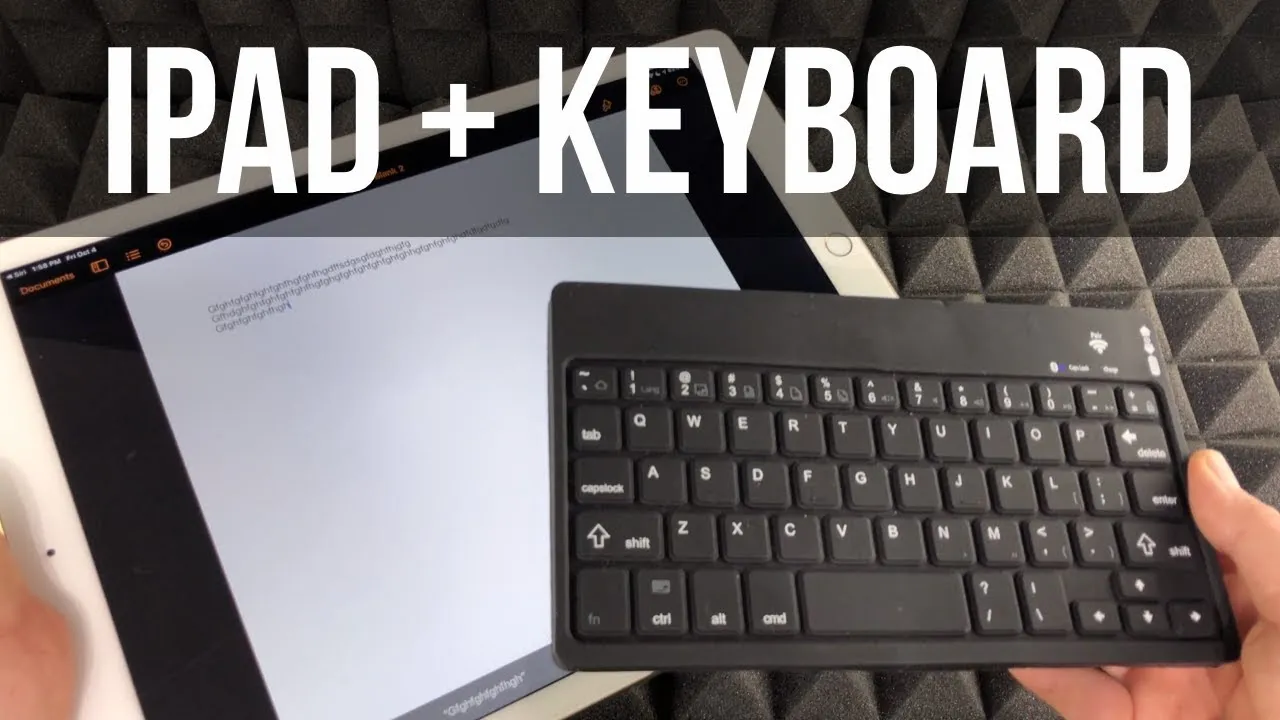
How to Connect a Keyboard to iPad
Connect a Bluetooth, Smart or USB keyboard to your iPad step by step, plus fixes for when your iPad won't pair with or detect the keyboard.
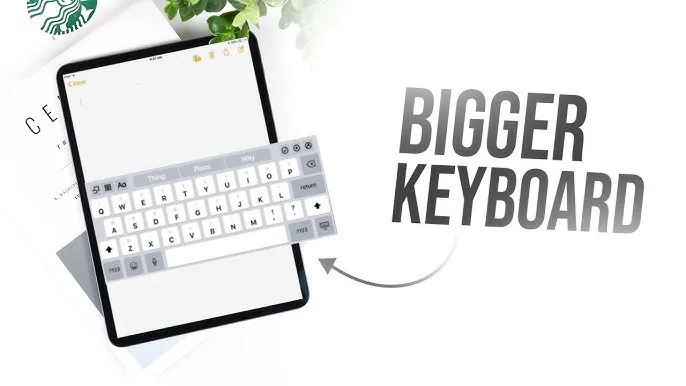
How to Make the iPad Keyboard Bigger
Restore a small floating or split iPad keyboard to full size. Follow the pinch-out and Dock and Merge steps, plus landscape and accessibility options.
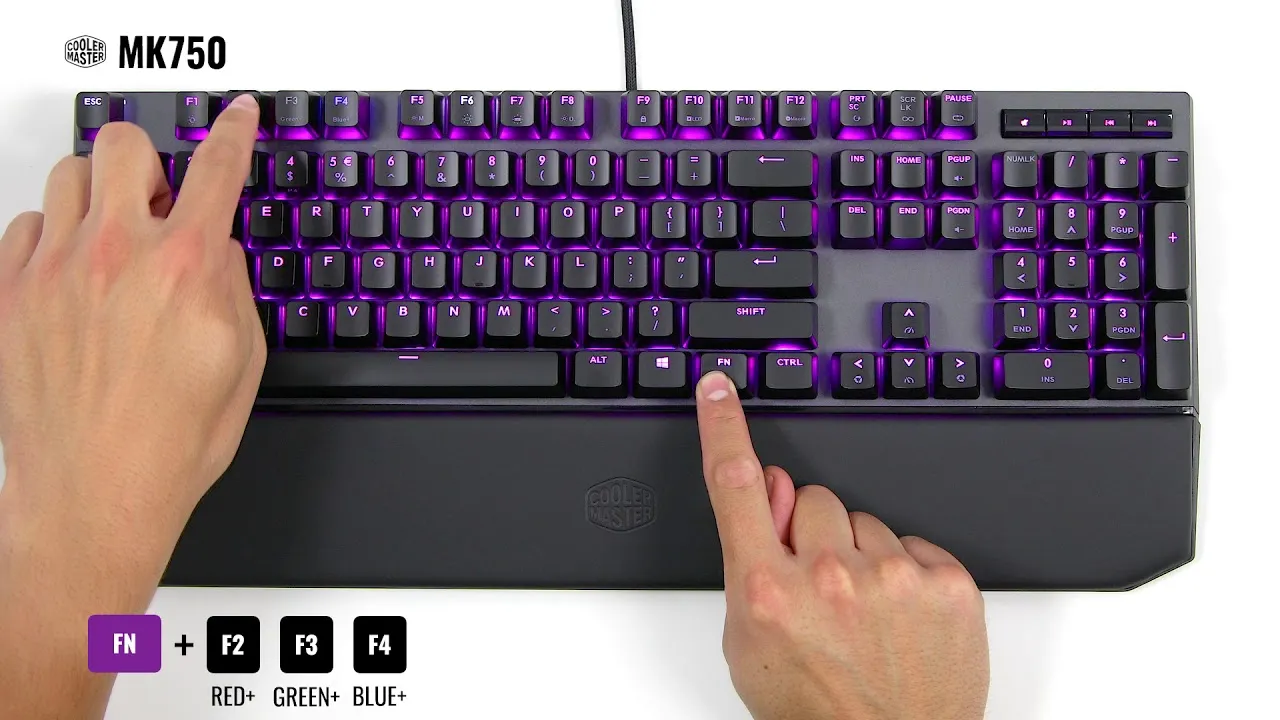
How to Change Your Keyboard’s Lighting Color
Want your keyboard to glow a different color? Learn how to check for RGB lighting and change keyboard colors with software, key shortcuts and settings.